
 0
0
 0
0
A FLAC label does not guarantee that the music inside the file came from a lossless source. FLAC itself is a lossless codec, which means it can preserve the audio data presented to its encoder without discarding information. The problem is what may have happened before that stage. If someone takes an MP3, decodes it to PCM, and then saves that PCM as FLAC, the new FLAC faithfully preserves the already damaged MP3-derived signal. It cannot reconstruct information lost during the earlier lossy compression.
That distinction is the basis of a useful audio-quality check. The question is not simply whether a file is technically valid FLAC. The more useful question is whether the available evidence supports a genuinely lossless source. A reliable assessment usually combines several kinds of evidence: frequency content, codec and bit-depth information, comparison with a known release, controlled listening, and source history. None of these should be treated as an automatic pass-or-fail test on its own.
Lossless Encoding and Source Provenance
Consider two possible production paths. A genuine lossless release might follow a path from the studio master or CD-quality PCM directly into FLAC. A suspicious file might follow a different path: original PCM, MP3 encoding, MP3 decoding, and then FLAC encoding. Both final files can be valid .flac files. Both can decode normally. Both may show plausible sample-rate and bit-depth values. The difference is that the second file has already passed through a lossy stage.
This is why converting an MP3 into FLAC never restores the original recording. MP3 encoding is not reversible. FLAC can preserve the decoded MP3 waveform exactly from that point forward, but the information removed by the MP3 encoder is already gone. The term “fake FLAC” is commonly used for this situation, although “lossy-sourced FLAC” or “transcoded FLAC” describes the technical problem more accurately. The FLAC file itself may be completely valid. The questionable part is its source.
Spectral Evidence and High-Frequency Truncation Patterns
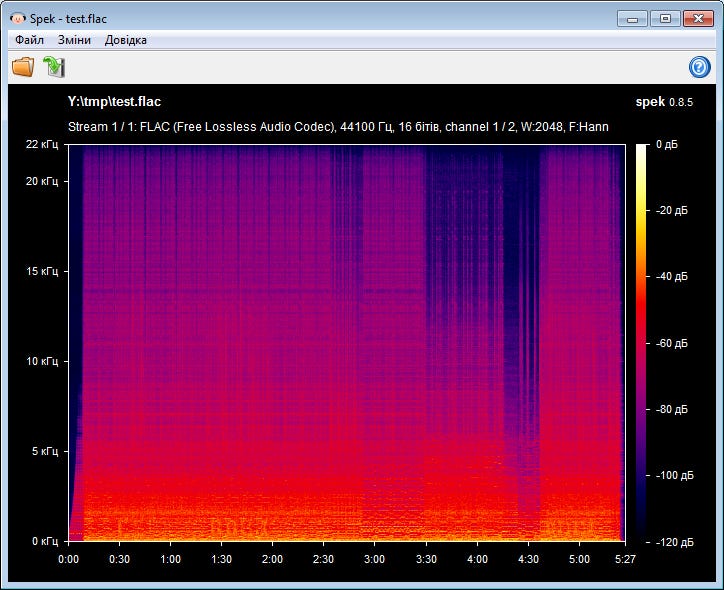
A spectrogram is one of the most useful first checks because it displays frequency energy over time. Audacity, for example, can show an audio track as a spectrogram rather than a normal waveform. Its display makes it possible to examine whether high-frequency content continues naturally or disappears abruptly across part of the recording.
A suspicious lossy-sourced file may show a nearly horizontal boundary above which little or no information appears. Such a boundary can be the result of low-pass filtering performed during lossy encoding. Some MP3 encoders deliberately reduce high-frequency information as part of their compression strategy. LAME documentation, for example, describes low-pass filtering as one of the techniques used by its psychoacoustic encoding process.
The mistake is treating one particular cutoff frequency as proof of a particular bitrate. Statements such as “everything ending at 16 kHz must be 128 kbps MP3” or “a 320 kbps file must reach approximately 20 kHz” are too rigid for forensic use. Encoder version, quality mode, bitrate mode, encoder configuration, and the musical material itself can affect the resulting spectrum. Variable-bitrate encoding also allocates data according to the demands of the signal rather than applying one identical pattern to every moment of a track.
The recording itself creates another problem. An acoustic recording, old master, filtered production, voice recording, or instrument with little upper-frequency energy can naturally show large empty areas. A single quiet passage therefore tells very little. A better inspection uses several parts of the song. Sections containing cymbals, hi-hats, applause, vocal sibilance, distorted guitars, or dense percussion are especially useful because they normally provide more high-frequency material to examine. If an abrupt ceiling stays at almost exactly the same frequency throughout many energetic passages, the result becomes more suspicious.
Spectrogram settings also matter. Audacity notes that FFT window size changes the balance between frequency resolution and time resolution, while gain, range, scale, and window type affect the appearance of the display. Two screenshots made with different settings can therefore look noticeably different even when they represent the same audio. For a meaningful comparison, use the same spectrogram settings for every file and examine multiple sections rather than selecting the one frame that appears to support a conclusion.
Codec Specifications and Effective Information Content
The next layer of evidence comes from the file’s technical properties. An analysis utility such as ffprobe can report information about the audio stream and its metadata. Relevant fields include the codec, sample rate, channel layout, duration, bitrate where applicable, and available sample-depth information. FFmpeg’s documentation confirms that ffprobe can inspect stream configuration and container or stream metadata rather than relying on the filename alone.
For FLAC specifically, the format stores technical information such as sample rate, number of channels, bits per sample, total samples, and an MD5 checksum of the unencoded audio data in its STREAMINFO metadata. The current FLAC specification supports multiple bit depths rather than being restricted to ordinary 16-bit CD audio.
These values describe the file, but they do not prove the resolution of the original source. A 24-bit/96 kHz FLAC could have originated from a genuine high-resolution master. It could also have been produced by taking a lower-resolution source and upsampling it. Changing the numerical sample rate does not recreate musical information that was absent from the input.
This creates a useful consistency test. Suppose an album is labeled 24-bit/96 kHz, but its spectrogram repeatedly shows the same limited effective bandwidth expected from a much lower-resolution source. That mismatch deserves further investigation. It is not automatic proof of fraud because legitimate mastering filters and recording equipment can restrict bandwidth, but the high sample-rate label alone should no longer be treated as evidence of high-resolution provenance.
Bit depth requires similar caution. A file can be stored using more bits than its source meaningfully used. The FLAC specification even provides mechanisms relating to unused or “wasted” least-significant bits, illustrating the difference between the nominal sample representation and the information actually present in the samples. The useful question is therefore not “Does the properties window say 24-bit/96 kHz?” It is whether the stated resolution, spectral content, noise characteristics, and known release history make sense together.
Reference Waveforms and Release Matching
A known reference can make the investigation much stronger. If you have a trustworthy CD rip, an official lossless download, or another verified copy of the same release, load both versions into an editor and examine corresponding sections. Compare duration, waveform structure, spectral content, channel arrangement, and obvious frequency boundaries.
The critical phrase is “the same release.” A remaster from 2024 should not automatically be compared with a CD issued in 1992. Different editions may use different masters, EQ, compression, limiting, edits, fades, channel balance, or track timing. Streaming versions can also undergo normalization without necessarily sharing identical playback levels with a purchased file.
Catalog number, release year, edition, region, and mastering information are therefore useful before drawing conclusions from waveform differences. Once the source versions are matched, line up the same musical section. Level differences should be compensated for during comparison so that a louder master is not mistaken for a higher-quality one. Pay particular attention to transient-rich passages and sections with sustained high-frequency energy.
If the verified lossless reference contains complex upper-frequency information while the questioned FLAC displays a repeated hard boundary in the same passages, the case for a previous lossy stage becomes substantially stronger. The reverse is also important. If both files have essentially the same unusual bandwidth limitation, that limitation may belong to the original recording or mastering process rather than to an MP3 transcode.
Compression Artifacts in Level-Matched Listening
Visual analysis should be supported by listening rather than replacing it. Lossy compression can become easier to notice in difficult material. Cymbal decay, hi-hats, applause, reverberation tails, sharp consonants, and other complex high-frequency sounds are useful test sections. Historical LAME listening-test material, for example, includes difficult hi-hat passages where encoding artifacts were particularly noticeable.
Compare exactly the same passage and keep playback levels matched as closely as possible. Large volume differences can easily influence perceived detail and clarity. Possible lossy artifacts include a watery or swirling texture around cymbals, roughness in sibilants, altered reverberation tails, or pre-echo around sudden transients. These are clues, not universal signatures. Encoder quality and bitrate have a major influence on whether such differences remain audible.
A high-quality MP3 can also be difficult or impossible for a particular listener to distinguish reliably from its lossless source. Failure to hear a difference therefore does not establish that the file is genuinely lossless. Likewise, hearing something “more detailed” in the FLAC proves very little if the comparison uses a different master or a different volume level.
Listening becomes most useful when it agrees with other evidence. A suspicious spectral pattern, matching technical inconsistencies, and audible artifacts in the same passages form a much stronger case than a subjective impression by itself.
Metadata, Checksums, and Source History
Metadata can reveal where a file came from, but it should be treated as supporting evidence. Useful information may include encoder or vendor tags, purchase information, ripping logs, track identifiers, catalog numbers, and checksums. The FLAC metaflac utility can display STREAMINFO values, the stored MD5 signature, sample rate, bits per sample, vendor information, and other tags. It can also edit or remove many metadata fields.
That last point matters. Ordinary tags are editable. An encoder field saying that a file was created with legitimate software does not establish that the input to that encoder was a studio master. The FLAC MD5 value has a different purpose. According to the format specification, it represents the unencoded audio data and can be used to detect corruption or verify decoded audio integrity. It does not certify that the audio was originally lossless. An MP3-derived signal can be encoded into FLAC and receive a perfectly valid MD5 checksum.
A ripping log or checksum becomes much more meaningful when it connects the file to a trustworthy source. For example, a complete CD ripping record associated with the correct disc edition carries more provenance information than a loose FLAC file containing only artist and album tags. Purchased downloads should also be compared with the specifications published for that release. If the store supplied a 24-bit/96 kHz product but the actual file reports a different technical format, that is a straightforward discrepancy. If the file reports the advertised numbers but appears spectrally suspicious, additional evidence is needed before deciding that the source was upsampled or lossy.
Evidence Weighting and a Practical Verdict
A reliable FLAC check works best as a sequence rather than a single test.
- Confirm that the file is genuinely encoded as FLAC and record its sample rate, bit depth, channels, duration, and metadata. Then inspect several spectrogram sections with identical display settings, especially passages containing strong high-frequency material.
- Look for repeated patterns rather than isolated empty areas. An abrupt frequency boundary appearing throughout multiple complex passages is more meaningful than missing high frequencies during one quiet section.
- Compare the questioned file with a trustworthy lossless version of the same release whenever possible. Match the release year, catalog information, mix, track timing, and playback level before interpreting differences.
- Listen to the same difficult passages at matched volume and record whether suspected artifacts correspond with the spectral evidence. Do not classify the source from listening impressions alone.
- Review metadata, ripping records, checksums, purchase history, and published specifications. Treat editable tags as supporting clues and integrity checks as evidence of file consistency, not proof of original provenance.
A FLAC file with natural-looking spectra, specifications consistent with the release, a matching verified reference, and credible source history has a strong case for being genuinely lossless. A FLAC file with one unusual spectral feature but no other inconsistency should remain inconclusive. A file becomes much more suspicious when several independent signs agree: repeated high-frequency truncation, high-resolution specifications unsupported by the effective audio content, close resemblance to a known lossy version, audible compression artifacts in the same passages, and weak or contradictory source history.
The extension is therefore only the starting point. FLAC tells you that the current encoding stage is lossless. Determining whether the music reached that stage without passing through MP3 or another lossy format requires evidence from the audio itself and from the history behind the file.


